Clear the Clutter. How to Free Up Storage Space on Your iPhone
- Apr 20
- 3 min read
Running out of space on your iOS device? Here's how to figure out what's taking up the most space on your Apple smartphone (and iPad) so you can decide what to delete.

Check Your Total Usage
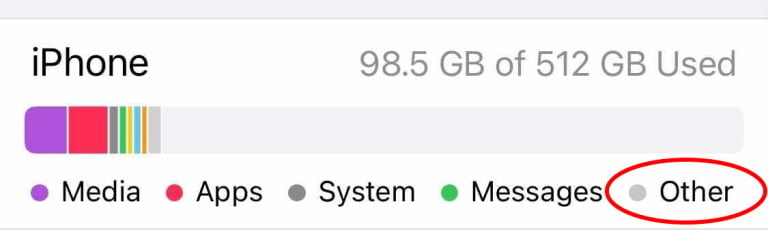
First, assess how much space you have. Go to Settings > General > [Device] Storage. At the top, you'll see a color-coded bar chart showing how much space each app category takes up on your device. This can include apps, messages, and photos. Note that a small portion of your device's memory will always be used up by the operating system

How to Reduce 'Other' Storage
In some cases, you might notice an "Other" category in light gray. This is mostly cached images and videos in texts, music and video streaming, and browser activity, among other things. While you can't eliminate it, you can reduce it if you need the space.
Go to Settings > General, and find the apps that use the most data. If your streaming apps, for instance, occupy a couple of gigs and you don't have anything downloaded on those services, uninstall them and reinstall them. This will clear out the cache.
You might have the ability to get rid of some cached items directly if you come across a Review Downloaded Videos section on this page. Clicking on it to see cached videos, which you can delete individually. You might also see Review Large Attachments, which will show you file-by-file images, videos, PDFs, and other things that have been cached in Messages. These files appear in order of how much space they take up, and you can delete them one at a time.
Delete or Offload Apps
If you continue scrolling down under Storage, you'll see a list of all your apps, sorted by how much space they consume. Another way to list them is by Last Used Date. Select any app, and a new page shows usage in two sections: App Size (the space the app occupies) and Documents & Data (the space occupied by associated data files).
In the example below, the Snapchat app takes up 331.7 MB, but all the messages and media stored in it take up 6.04GB at the moment. Sometimes, this info helps you see that it's not the app that takes up space, but rather what you store in it. For instance, if you have a lot of YouTube videos saved to your phone, the app as a whole will take up a lot more room. In this case, you can see that Documents & Data are taking up the most space.

Once you have a sense of what is taking up the most room, you can start clearing things out. On the storage page, you can select an App and choose Offload App to delete the app while retaining the associated files, or Delete App to remove everything. To delete apps from the Home screen, long-press an icon, then select Remove App > Delete App from the menu. Any purchased app is always available to re-download at no extra charge from the App Store.
If you want to temporarily disable apps without deleting their settings, like when you have to free up space to install an iOS update, Apple lets you offload them. They'll remain on the device, but you'll need to take a moment to re-download them before you can get back in. Find the app on the storage list, tap it, and select Offload App. You can also set up the automatic removal of apps you don't use often. Go to Settings > Apps > App Store and enable Offload Unused Apps if it isn't already set up.



Comments